
Your season schedule. Your whole team. One place.
Import your full season schedule in one step, or add games and practices manually. Every event is automatically visible to every parent, with reminders going out the morning of each one, without any effort from you.
Schedule set. Season handled.
Import Your Season in One Step
Games and Practices Together
Parent Calendars, Automatically
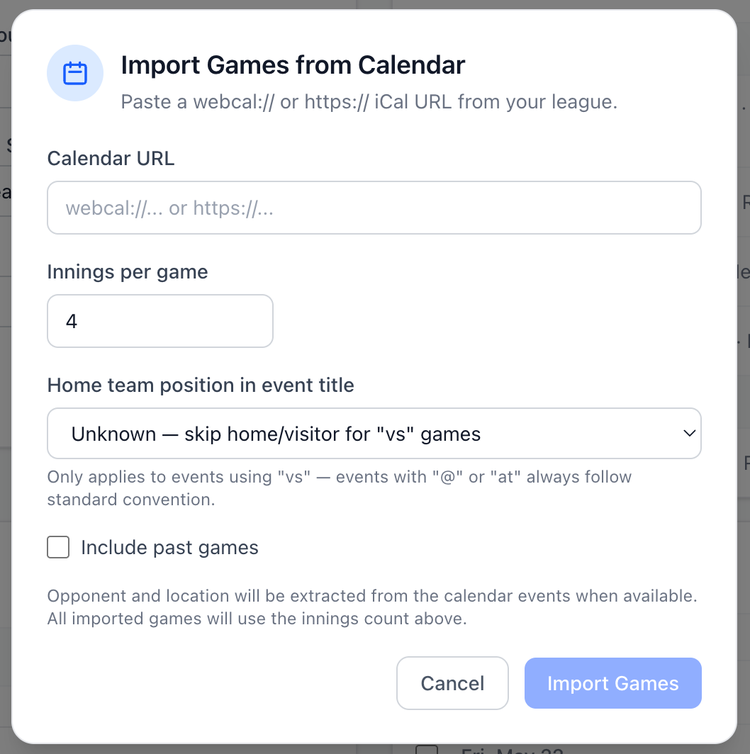
Import your season schedule from a calendar link.
If your league provides a subscribable calendar URL, which is common in most youth baseball, softball, and soccer leagues, paste it into GameCard and every game imports automatically. Dates, times, opponents, and locations come in with it. You don't type a thing. Don't have a league calendar? Add games manually in seconds. Either way, your full season is in GameCard quickly at the start of the year.
Automatic reminders before every event.
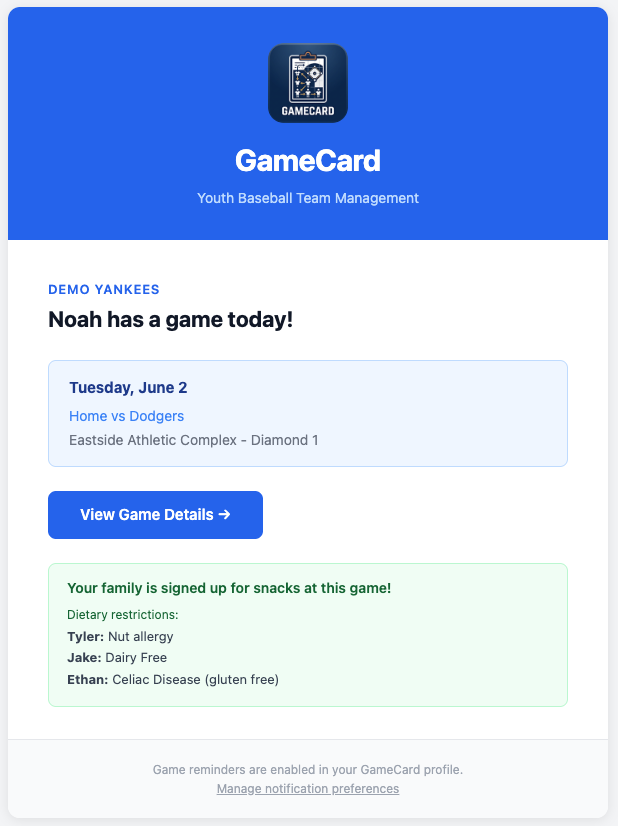
Every parent on your team gets a reminder email the morning of each game and each practice. You don't send these. GameCard sends them automatically for every event on the schedule.
The reminder shows the event time, the location, and whether that parent is signed up for snacks. Parents show up. You didn't have to do a thing.
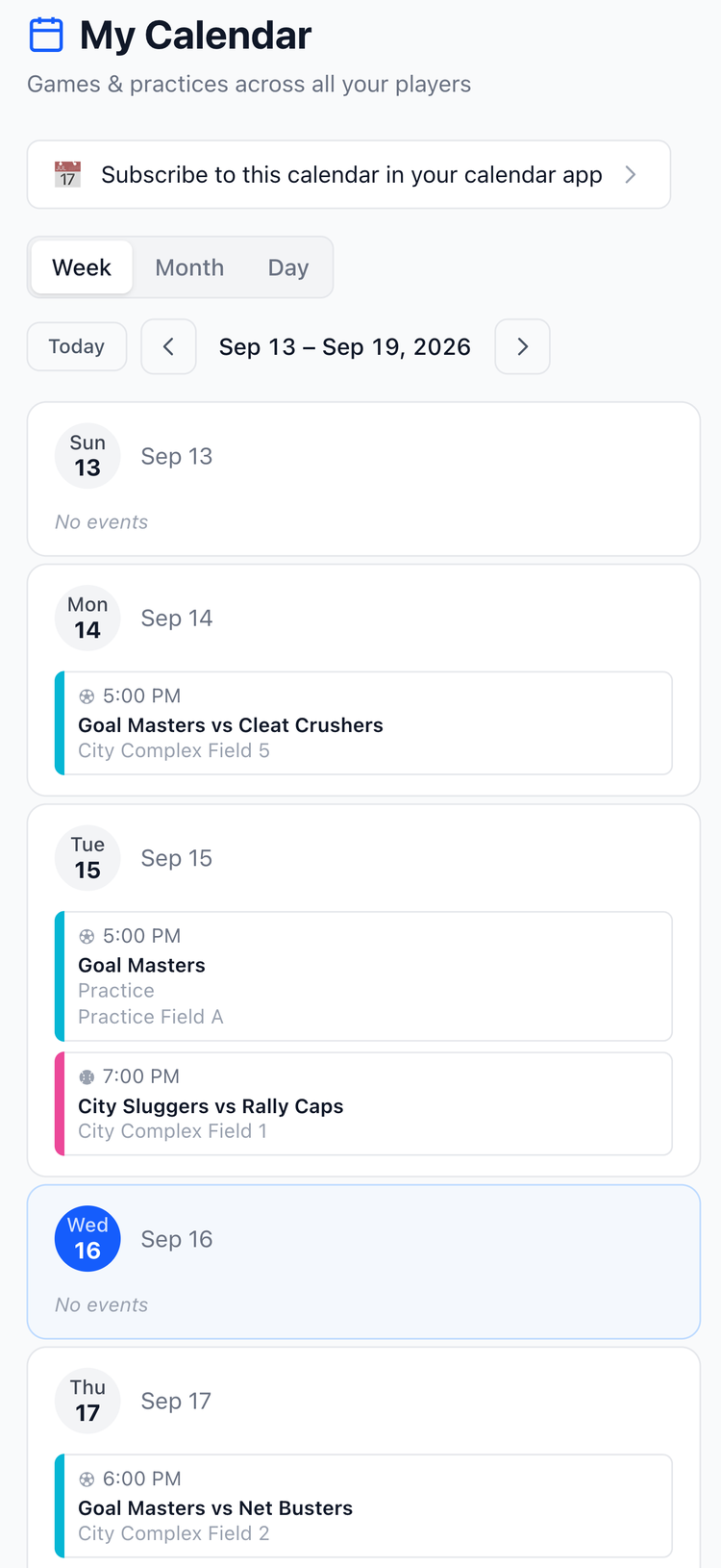
One calendar for every kid on every team.
Parents who have kids on multiple teams (baseball in spring, soccer in fall, or two kids in different leagues) see all their schedules in one combined calendar in GameCard. Day, week, and month views.
Each event shows the time, the location, and which player it belongs to. A parent with a 9-year-old in baseball and a 7-year-old in soccer sees all of it in one place, without switching accounts or checking two apps.
One link, always current.
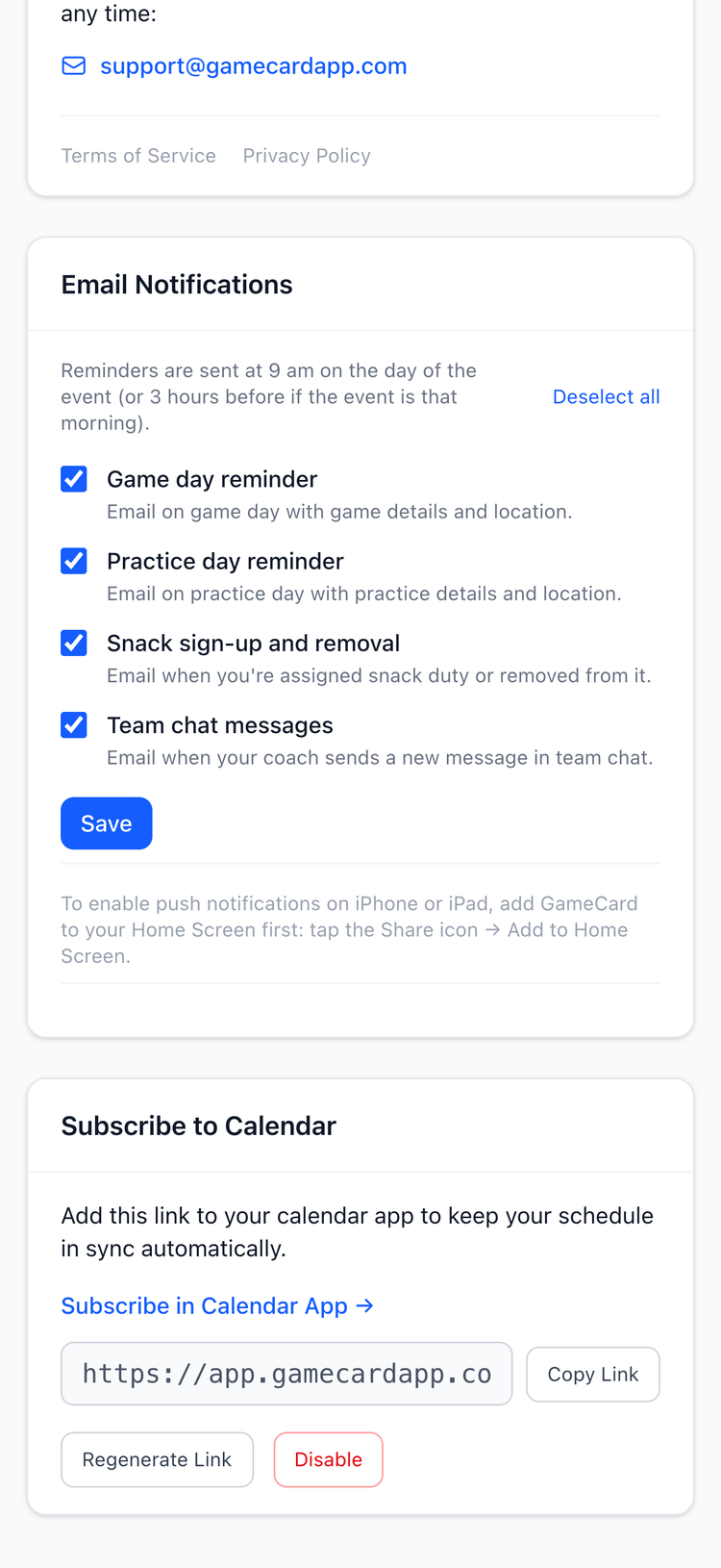
Every parent gets a personal calendar link from their profile. They add it once to Google Calendar, Apple Calendar, or Outlook, and it stays in sync automatically: new games, rescheduled games, and canceled practices all update on their own, across every team and every player they follow. You never have to tell anyone to re-check the schedule.
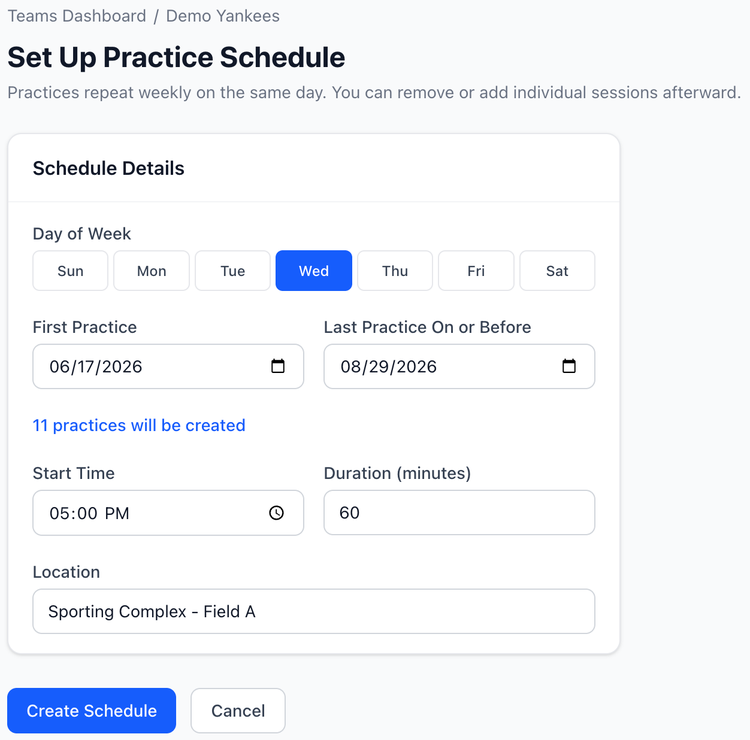
Recurring practices without the manual entry.
Add a recurring practice once (every Tuesday at 6pm, for example) and all sessions appear on the schedule automatically for the entire season. Cancel individual sessions when something comes up without disrupting the rest of the recurring schedule.
Parents see every practice on their calendar from the day you set it up. Reminders go out for all of them automatically.
Questions about team management

Set up your season in 15 minutes.
Import your schedule, add your roster, and invite parents. GameCard handles the rest from there: reminders, lineup generation, snack coordination, all of it. Free to start, no credit card required.